
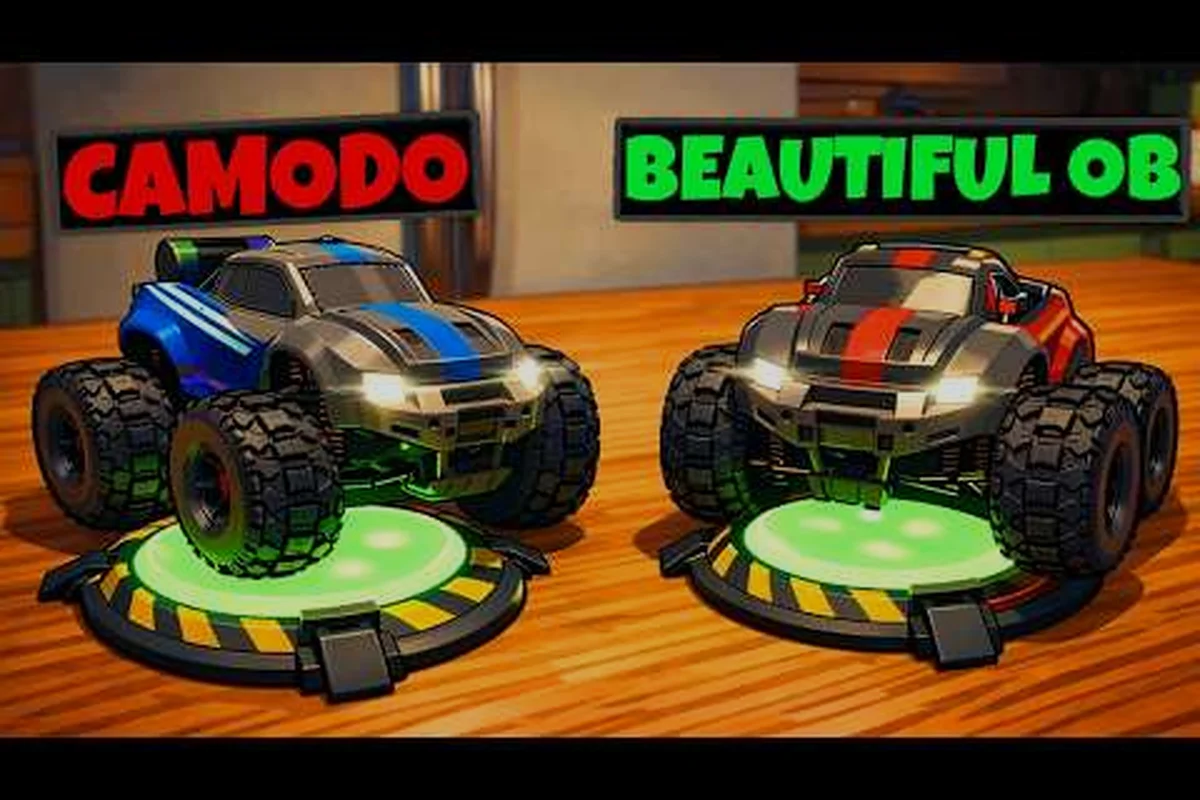
WheelMates local co-op is the heart of the experience, and the game's design makes it clear that two players are the intended way to play. Firevolt's co-op driving adventure lets you and a friend pilot two tiny RC cars through a professor's home laboratory, and nearly every puzzle is built around that partnership. Getting the input setup right matters because the mechanics depend on precise timing, and a mismatched controller or keyboard configuration can turn a promising session into a frustrating one. The sections below walk through the best local co-op configurations, crossplay options, and communication tactics so you can start solving puzzles without friction. Whether you're on PC with a friend on the couch or using Steam's Remote Play to bring someone in from across town, WheelMates local co-op has a setup that works for your situation.
Setting Up Local Co-op on One Machine
Before you start, you need to know exactly what WheelMates local co-op requires on a single PC. According to the official WheelMates Steam page, the game supports both split-screen co-op and online co-op, with tags that include Local Co-op, Split Screen, and Online Co-op. That means you have several ways to play together, and the right choice depends on the hardware you have available. The game also includes a Friend's Pass system, which lets a friend join the full game for free, and this works for both local and online sessions.
What You Need for Local Co-op
The minimum requirement is two players and two input devices that the game can detect at the same time. The game supports a keyboard and controller, two controllers, or two keyboards if you're willing to rebind the controls. Here's what the game provides:
-
Keyboard + Controller — the most common setup, works out of the box
-
Two Controllers — the smoothest couch co-op experience
-
Two Keyboards — requires custom rebinding for the second player
-
Steam Input support — ensures multiple devices work without conflicts
The Friend's Pass is a key part of local co-op because it lets a second player join without owning the game. Community reports on the Steam discussions indicate the setup is straightforward, though the host must create a session first. If you're completely new to the game, the beginner guide covers the basics of getting started, including the first session setup and core mechanics.
Friend's Pass Setup
The Friend's Pass is the fastest way to get a second player into the game. The flow is simple:
-
Host starts the game and creates a new co-op session
-
Second player joins using a connected controller or keyboard
-
The game assigns each player to one of the two RC cars
The Friend's Pass works for both local and online play, so you can test the game with a friend before they decide to buy. According to community data, the setup takes about a minute, and the main requirement is that both input devices are connected and detected before you start. If you run into any issues, restarting the session usually resolves them quickly.
Keyboard and Controller Pairings for Two Players
The most common question about WheelMates local co-op is which input combination works best. The game's controls are designed around driving a single RC car, and the way you set up your inputs affects how smoothly you can coordinate with your partner. Let me break down the options so you can pick the right one for your setup.
Keyboard and Controller Combos
If you have one keyboard and one controller, you're in the most common situation. The first player uses the keyboard while the second uses the controller, and the game handles the split automatically. This is the keyboard co-op setup that most players use, and it works well because the keyboard player gets the full range of controls while the controller player gets analog steering.
| Input Combo | Best For | Setup Difficulty | Notes |
|---|---|---|---|
| Keyboard + Controller | First setups | Low | Works out of the box |
| Two Controllers | Couch co-op | Low | Both players get analog control |
| Two Keyboards | PC players | Medium | Requires custom rebinding |
| Keyboard + Steam Deck | Handheld play | Medium | Use Remote Play or local |
The controller co-op setup is the most comfortable for most players because the game's analog sticks benefit from precise steering. If you have two controllers, both players use the same setup, which makes coordination easier. If you're using a keyboard and controller, the keyboard player may want to rebind keys to match their preferences, and you can find a full breakdown of the keyboard controls and rebind options in the dedicated guide.
Two Controllers on One PC
For the smoothest couch co-op, two controllers are the way to go. The game detects both automatically and assigns each player to a different car, which gives both players the same physical control. This is the recommended setup because it avoids the input conflicts that can happen with keyboard setups. If you're using a Steam Deck, you can also pair a controller to the device and play locally, which is a popular option for travel.
The main thing to watch out for is input conflicts. If you have multiple controllers plugged in, the game needs to assign each one correctly. According to community reports, the game handles this well, but you should confirm both controllers are detected in Steam's controller settings before you start. If you see both players controlling the same car, check the assignment in the settings menu.
WheelMates Crossplay and Remote Co-op Options
WheelMates crossplay is a common topic, especially for players who want to team up with friends on different devices. The game supports crossplay through Steam's multiplayer features, which means you can play with someone on a different PC or a Steam Deck. WheelMates co-op on Steam is designed to support both local and online sessions, and the Friend's Pass extends to online play as well.
Steam Remote Play Together
The easiest way to play with a friend who doesn't own the game is Steam Remote Play. This feature lets you share your local co-op session over the internet, and the friend can join with their own controller. The host needs a stable connection, and the friend needs a decent internet speed, but it's the most accessible way to play together without a second copy.
According to the official Steam page, the game supports both local and online co-op, and Remote Play is a natural fit for the game's design. Community reports suggest that Remote Play works well for WheelMates, though you should adjust the streaming quality if you notice latency. The game's puzzles require precise timing, so a stable connection is important for a smooth experience.
Steam Deck and Crossplay
WheelMates crossplay between a Steam Deck and a PC works through Steam's online multiplayer features. The game is Steam Deck supported, and you can play with a friend on a PC while you're on the Deck. The Friend's Pass works for crossplay too, so your friend can join without buying the game.
If you're playing on a Steam Deck, check the recommended requirements and performance settings to ensure you get a stable framerate. The game runs well on the Deck according to community reports, but you may need to adjust the graphics settings for the best experience. A stable framerate is especially important for co-op because the puzzle timing depends on it.
| Co-op Method | Setup | Best For | Latency |
|---|---|---|---|
| Local Split Screen | One PC + two inputs | Couch co-op | None |
| Steam Remote Play | Two PCs + internet | Long-distance play | Low |
| Steam Online Co-op | Two copies of the game | Friends who own it | None |
Co-op Communication for Puzzle Solving
WheelMates co-op communication is the difference between a successful puzzle session and a chaotic one. The game's puzzles are built around two players working together, and how you communicate clearly determines how quickly you solve them. Whether you're in the same room or on a voice call, having a clear strategy makes the game much more enjoyable.
Roles and Call Signs
The most effective approach is to assign roles before you start. Each player focuses on a specific task, and this division of labor makes the game much easier. For example, in a Rope Swing puzzle, one player needs to swing across a gap while the other activates the mechanism. Here are the common roles:
-
Driver — controls the car and handles the camera
-
Operator — watches the puzzle and activates the switch
-
Coordinator — manages the sequence and keeps the objective clear
The game's puzzles often require one player to hold a switch while the other drives through a gate. This is where co-op communication matters most, and you need to agree on call signs before you start. For example, "ready" means the switch is held, and "go" means the other player can drive. Using the same call signs every time reduces confusion and speeds up your runs.
Using Voice Chat and Pings
If you're playing online, voice chat is your best tool. The game doesn't have built-in voice chat, so you'll need to use Discord or Steam's voice chat. According to the community, the game is designed around voice coordination, and a clear voice channel makes a big difference. If you're playing locally, you can just talk, but you should still agree on the call signs.
The game also has a ping system that lets you point at a location on the screen. This is useful for highlighting the switch or the gate you need to use. The ping is subtle, but it's a great tool for co-op communication. If you want to improve your overall gameplay, the how to get good guide covers more co-op mechanics and advanced strategies.
Troubleshooting Common Local Co-op Hiccups
Even with the right setup, you might run into issues. Here are the most common problems with WheelMates local co-op and how to fix them.
| Issue | Cause | Fix |
|---|---|---|
| Second player not detected | The game doesn't see the input | Confirm Steam Input settings |
| Input conflict | Both players use the same device | Rebind one player's keys |
| Friend's Pass not working | Session not active | Restart and create a new session |
| Input lag on Remote Play | Network latency | Lower the streaming quality |
Fixing Input Conflicts
The most common issue is input conflicts, especially when both players are using the same device. If you're using two keyboards, you need to rebind the second player's keys in the settings. If you don't, both players will control the same car, which is a common complaint. The fix is to check the input assignment in the game settings and make sure each player has a distinct set of controls.
If you're using a controller and keyboard, the game usually handles the split automatically. But if both players are controlling the same car, check the Steam controller settings to confirm the game sees two distinct devices. The game needs to detect two inputs to assign them correctly.
Network and Performance Issues
For Remote Play sessions, the most common issue is latency. The game's puzzles require precise timing, so a laggy connection can ruin the experience. The fix is to lower the streaming quality in Steam's Remote Play settings and make sure both players have a stable connection. Community reports suggest a wired connection for the host is the best option.
Performance issues can also affect local co-op, especially on lower-end PCs. The game needs to render two cars and the puzzle environment, so a stable framerate is important. If you're seeing stutters, check the graphics and performance settings for optimization tips.
Frequently Asked Questions
Can I play WheelMates local co-op with one keyboard?
Yes, you can play with a single keyboard, but both players need to use different keys. The game supports two keyboards, and you can rebind the controls so each player has their own set. This is the keyboard co-op setup, and it works well for players who don't have a controller available.
Does WheelMates support crossplay between PC and Steam Deck?
Yes, WheelMates crossplay works between PC and Steam Deck through Steam's online multiplayer features. The game is Steam Deck supported, and you can play with a friend on a PC while you're on the Deck. The Friend's Pass also works for crossplay, so your friend can join without buying the game.
What is the best input setup for WheelMates local co-op?
The best setup is two controllers, which gives both players analog steering and the game handles the input split automatically. If you only have one controller, a keyboard and controller combo works well. The choice depends on your hardware, and the game supports all the common combinations.
How do I fix input lag issues in WheelMates local co-op?
Input lag usually happens during Remote Play sessions. To fix it, lower the streaming quality in Steam's Remote Play settings and make sure both players have a stable internet connection. For local play, check that your PC meets the recommended requirements and that you're getting a stable framerate.