
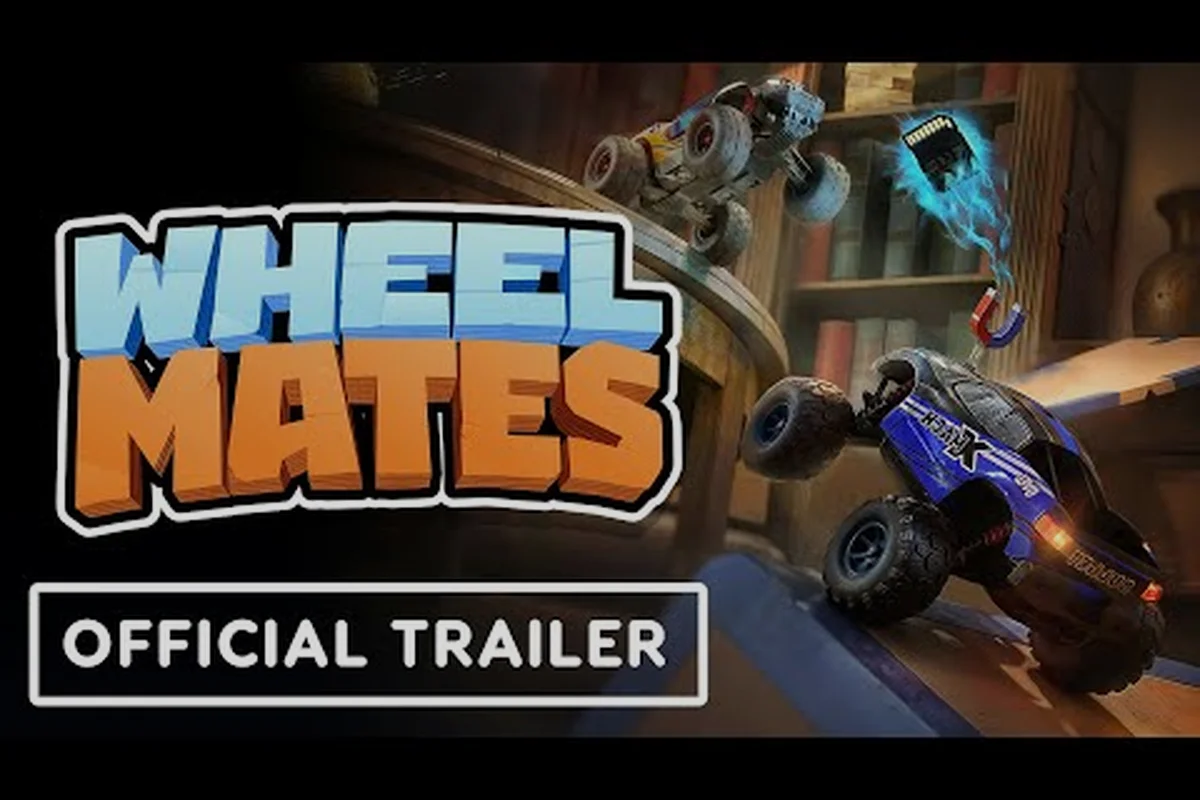
Las opciones de lanzamiento de WheelMates determinan qué tan fluida corre la aventura cooperativa de autos RC en tu máquina, qué tan receptivos se sienten tus controles y si puedes jugar cómodamente con un amigo en el mismo teclado. Dado que el juego se lanza en Steam el 1 de septiembre de 2026, configurar estos ajustes correctamente antes de comenzar importa más de lo que crees: una configuración deficiente puede convertir un encantador juego de rompecabezas en una experiencia frustrante. Esta guía repasa cada opción de lanzamiento que realmente afecta tu sesión, desde los ajustes preestablecidos de gráficos y los modos DLSS hasta la reasignación de teclas y el comportamiento del vsync.
Resumen de las Opciones de Lanzamiento de WheelMates: Qué Puedes Configurar
Antes de sumergirte en la casa del profesor, es útil comprender la gama completa de opciones de lanzamiento que expone WheelMates. El juego incluye un menú de configuración estándar con secciones de gráficos, audio, cámara y entrada, pero también hay parámetros de lanzamiento a nivel de Steam y alternancias dentro del juego que muchos jugadores pasan por alto. Según el tráiler de anuncio oficial de WheelMates, el juego apunta a una amplia gama de hardware, por lo que el menú de configuración está diseñado para escalar desde laptops de gama baja hasta computadoras de escritorio de gama alta.
Antes de tu primera carrera, WheelMates organiza su configuración de lanzamiento en cinco categorías distintas con las que interactuarás: ajustes de gráficos (donde viven el escalado DLSS y la alternancia de vsync), mapeo de entrada para la rotación de las ruedas y las teclas del pedal, ajuste de rendimiento, opciones de red/telemetría y audio. Cada una viene con valores predeterminados sensatos: DLSS se establece en Auto en las tarjetas RTX mientras que el vsync está deshabilitado por defecto para reducir la latencia de entrada, pero la sección de teclas merece revisarse primero, ya que los grados de rotación de rueda predeterminados y los valores de zona muerta del pedal de freno varían según el modelo de controlador y pueden hacer que tus primeras vueltas se sientan poco receptivas hasta que se ajusten.
-
Configuración de gráficos — resolución, calidad de texturas, calidad de sombras y opciones de escalado
-
Opciones de pantalla — ventana, pantalla completa, sin bordes y selección de frecuencia de actualización
-
Configuración de entrada — teclado, controlador y sensibilidad del mouse
-
Comportamiento de la cámara — cámara de seguimiento, cámara libre y sensibilidad de dirección
-
Alternancias de rendimiento — DLSS, vsync, límite de FPS y resolución dinámica
Cada una de estas categorías interactúa con las demás. Por ejemplo, habilitar DLSS cambia la resolución de renderizado, lo que a su vez afecta cómo se siente la cámara cuando conduces por pasillos estrechos. Los jugadores en las discusiones de la comunidad de Steam han informado que la cámara puede sentirse "realmente rota" cuando la tasa de fotogramas baja, por lo que fijar una tasa de fotogramas estable mediante vsync o un límite de fotogramas suele ser la primera solución a probar.
Las opciones de lanzamiento también incluyen algunos parámetros ocultos que puedes pasar a través del campo de opciones de lanzamiento de Steam, como forzar una resolución específica o deshabilitar la pantalla de presentación inicial. Estos no están documentados en la interfaz del juego, pero son seguros de usar y pueden ahorrarte unos segundos en tu tiempo de inicio. Cubriremos los más útiles en las secciones siguientes.
Configuración de Gráficos y DLSS de WheelMates
El menú de gráficos en WheelMates es sencillo, pero las decisiones que tomes aquí tienen un impacto directo tanto en la calidad visual como en la fluidez del juego. El juego es compatible con NVIDIA DLSS, lo cual es un gran beneficio para los jugadores con GPUs más antiguas porque te permite renderizar a una resolución interna más baja mientras produces a tu resolución nativa, dándote un aumento significativo de rendimiento sin una pérdida visual notable.
Modos DLSS y Cuándo Usarlos
WheelMates integra cuatro modos DLSS: Calidad, Equilibrado, Rendimiento y Ultra Rendimiento, cada uno intercambiando resolución renderizada por tasa de fotogramas. Las pruebas de la comunidad de la demo muestran que el modo Calidad mantiene 60 FPS estables a 1440p en GPUs de gama media, mientras que el modo Rendimiento supera los 120 FPS para monitores de alta frecuencia, aunque introduce un ligero fantasma en las texturas al costado de la pista durante curvas rápidas. Aquí tienes una comparación rápida de las compensaciones medidas:
| Modo DLSS | Escala de Resolución Interna | Mejor Para | Impacto en la Tasa de Fotogramas |
|---|---|---|---|
| Calidad | 67% | GPUs de gama alta, pantallas 4K | Ganancia mínima |
| Equilibrado | 58% | GPUs de gama media, 1440p | Ganancia moderada |
| Rendimiento | 50% | GPUs de gama baja, 1080p | Gran ganancia |
| Ultra Rendimiento | 33% | Hardware de muy baja gama | Ganancia máxima |
Si tienes una GTX 1660 o similar, el modo Rendimiento suele ser el punto óptimo porque mantiene el juego jugable mientras conserva suficiente detalle para leer el entorno. Los jugadores que probaron la demo informan que el modo Calidad es casi indistinguible del renderizado nativo en este juego, así que si tienes una GPU moderna, hay poca razón para bajar de él.
Resolución y Modo de Pantalla
La configuración del modo de pantalla es otra opción de lanzamiento que importa más de lo que esperarías. WheelMates funciona mejor en modo ventana sin bordes para la mayoría de los jugadores porque reduce la latencia de entrada al alternar con Alt+Tab para chatear con un compañero cooperativo. El modo pantalla completa da un pequeño impulso de rendimiento, pero puede causar tartamudeo cuando cambias el foco. El juego también es compatible con el modo ventana, que es útil si juegas en una laptop con pantalla pequeña.
Si experimentas caídas de tasa de fotogramas que se sienten como tartamudeo, revisa primero tu escala de resolución. El juego se establece en 100% por defecto, pero bajarla a 75% o 50% puede mejorar drásticamente el rendimiento en hardware más débil. Para una mirada más profunda al ajuste de rendimiento, nuestra guía de aumento de FPS de WheelMates cubre las soluciones para el tartamudeo y los requisitos del sistema en detalle.
Configuración de Controles y Teclas de WheelMates
La configuración de entrada es donde WheelMates se vuelve interesante, especialmente para los jugadores cooperativos. El juego es compatible tanto con controlador como con teclado, pero la distribución de teclado predeterminada ha sido un punto de discusión en los foros de Steam. Varios jugadores informan que las teclas predeterminadas son incómodas para dos jugadores que comparten un teclado, por lo que el juego incluye un menú completo de asignación de teclas.
Distribución de Teclado Predeterminada
Aquí está la distribución de teclado predeterminada con la que WheelMates se lanza, basada en la versión de la demo: WASD maneja el movimiento del chasis, la barra espaciadora activa el impulso y Shift activa el sprint para curvas cerradas. Q/E alternan entre las ranuras de equipo del compañero de rueda activo, mientras que Tab abre el radial de cambio rápido para cambios de neumáticos a mitad de carrera. Este mapeo de la demo prioriza la accesibilidad sobre la ergonomía de carreras: los jugadores competitivos a menudo reasignan el impulso al botón derecho del mouse a través de la configuración de teclas de wheelmates, ya que la ubicación predeterminada en la barra espaciadora dificulta modular el acelerador durante cadenas de derrape sostenidas.
| Acción | Tecla Predeterminada | Notas |
|---|---|---|
| Conducir Adelante | W | Mantener para acelerar |
| Conducir Atrás | S | Mantener para retroceder |
| Girar a la Izquierda | A | Dirigir a la izquierda |
| Girar a la Derecha | D | Dirigir a la derecha |
| Balanceo de Cuerda | Espacio | Presionar para enganchar |
| Agarre Magnético | E | Mantener para agarrar |
| Ruedas Magnéticas | Q | Alternar activado/desactivado |
| Restablecer Cámara | C | Recentra la cámara |
| Menú de Pausa | Esc | Abre el menú |
El Balanceo de Cuerda y el Agarre Magnético son los dos dispositivos principales, y los usarás constantemente, así que asegúrate de que estén colocados donde tus dedos descansen naturalmente. Si juegas solo con un controlador, el juego detecta automáticamente el controlador y asigna estas acciones a los gatillos y botones superiores, lo que se siente mucho más intuitivo.
Cómo Reasignar las Teclas
Para reasignar cualquier acción, abre el menú de Configuración, selecciona Controles y haz clic en la acción que deseas cambiar. El juego te pedirá que presiones una nueva tecla. También puedes asignar varias teclas a la misma acción, lo cual es útil si quieres que ambos jugadores usen el mismo dispositivo sin pelear por una tecla. Según los informes de los jugadores, el sistema de reasignación funciona bien, pero hay una trampa: algunas acciones no se pueden vincular a la misma tecla, por lo que deberás planificar tu distribución.
Si juegas con un amigo en un solo teclado, la guía de controles de teclado explica cómo configurar una distribución para dos jugadores que evite conflictos de teclas. La clave es darle a cada jugador su propio conjunto de teclas de movimiento y teclas de dispositivos, para que no activen accidentalmente las acciones del otro.
Configuración de Vsync y Tasa de Fotogramas de WheelMates
La configuración de vsync en WheelMates es más matizada que una simple alternancia de encendido/apagado, porque interactúa con el sistema de cámara y la física del juego. Cuando el vsync está habilitado, el juego fija tu tasa de fotogramas a la frecuencia de actualización de tu monitor, lo que evita el desgarro de pantalla pero puede introducir latencia de entrada. Cuando está deshabilitado, obtienes tasas de fotogramas más altas pero corres el riesgo de desgarro, especialmente en monitores de alta frecuencia.
Comparación de Opciones de Vsync
Así es como se comportan los diferentes modos de vsync en WheelMates: Desactivado ofrece la latencia de entrada más baja para las entradas de dirección, algo crítico al recortar décimas de segundo en una vuelta en curvas de alta velocidad, pero te deja vulnerable al desgarro de pantalla en paneles de 144Hz o más. Activado limita la tasa de fotogramas al techo de actualización de tu pantalla e inserta un fotograma completo de retraso de almacenamiento en búfer, lo que puede hacer que las entradas de las ruedas se sientan ligeramente esponjosas. Adaptativo sincroniza solo cuando los FPS superan la frecuencia de actualización, mientras que Rápido (triple búfer) minimiza el desgarro sin la penalización completa de sincronización estricta. Con la Generación de Fotogramas DLSS activa, mantén el vsync Desactivado para evitar conflictos de doble búfer que detengan la canalización de fotogramas.
| Configuración | Tasa de Fotogramas | Latencia de Entrada | Desgarro de Pantalla | Mejor Escenario |
|---|---|---|---|---|
| Desactivado | Sin límite | Más baja | Posible | Monitores de alta frecuencia |
| Activado | Fijada a la actualización | Moderada | Ninguno | Monitores estándar de 60Hz |
| Adaptativo | Variable | Baja | Raro | Contenido mixto |
| Triple Búfer | Fijada | Ligeramente más alta | Ninguno | GPUs de gama baja |
La opción de Triple Búfer vale la pena probarla si tienes una GPU de gama baja, porque suaviza las caídas de tasa de fotogramas sin la latencia de entrada del vsync estándar. Sin embargo, si juegas en cooperativo y necesitas una sincronización precisa para los balanceos de cuerda, querrás mantener la latencia de entrada lo más baja posible, lo que significa deshabilitar el vsync y usar un límite de tasa de fotogramas en su lugar.
Límite de Tasa de Fotogramas
WheelMates incluye un limitador de tasa de fotogramas integrado que te permite limitar el juego a 30, 60, 120 o ilimitado. Limitar a 60 es un buen valor predeterminado para la mayoría de los jugadores, pero si tienes un monitor de 144Hz, querrás configurarlo a 144 para que coincida con tu frecuencia de actualización. El sistema de cámara en WheelMates es sensible a las fluctuaciones de la tasa de fotogramas, por lo que una tasa de fotogramas estable es más importante que una alta. Si experimentas vibración de la cámara, intenta limitar tu tasa de fotogramas a 60 y observa si se suaviza.
Para una mirada más profunda sobre cómo la configuración de la cámara afecta tu conducción, consulta la guía de configuración de cámara, que cubre la sensibilidad de dirección y los ajustes del acelerador. Ten en cuenta que el límite de tasa de fotogramas que establezcas a través de las opciones de lanzamiento (por ejemplo, -fps_cap 30 o el control deslizante de FPS máximos en el juego) interactúa directamente con la respuesta de la cámara: un límite más bajo puede introducir latencia de entrada que hace que la dirección se sienta lenta, mientras que dejarlo sin límite junto con la generación de fotogramas DLSS suaviza las transiciones del acelerador a alta velocidad. Ajusta ambos juntos para un manejo consistente en diferentes pistas.
Opciones de Lanzamiento de WheelMates para Cooperativo y Pase de Amigo
El modo cooperativo en WheelMates es el corazón del juego, y las opciones de lanzamiento que elijas pueden hacer o deshacer la experiencia. El juego es compatible tanto con el cooperativo local en la misma pantalla como con el cooperativo en línea a través del sistema de Pase de Amigo de Steam. Cada modo tiene su propio conjunto de configuraciones que debes ajustar antes de comenzar.
Configuración del Cooperativo Local
Para el cooperativo local, la configuración más importante es la distribución de pantalla dividida. WheelMates ofrece dos opciones: horizontal y vertical. La distribución horizontal es mejor para monitores anchos, mientras que la distribución vertical funciona bien en pantallas estándar de 16:9. También debes decidir si cada jugador usa un controlador o comparte el teclado. Si comparten el teclado, deberás configurar las teclas como se describió anteriormente.
Cooperativo en Línea y Pase de Amigo
Para el cooperativo en línea, las opciones de lanzamiento incluyen configuraciones de red como migración de anfitrión y calidad de conexión. El juego usa la red peer-to-peer de Steam, por lo que tu calidad de conexión depende del internet del anfitrión. Si eres el anfitrión, debes configurar tu límite de tasa de fotogramas a 60 y habilitar el vsync para mantener el juego estable para tu compañero. Si te unes, puedes ajustar tu propia configuración de gráficos para reducir la latencia, pero el juego sincronizará la física con la tasa de fotogramas del anfitrión.
El sistema de Pase de Amigo permite que un jugador posea el juego e invite a un amigo a jugar gratis, y las opciones de lanzamiento para el amigo son ligeramente diferentes. El cliente del amigo se ejecuta en un modo reducido que limita algunas configuraciones de gráficos, pero aún puedes ajustar el DLSS y el vsync. Según la comunidad de Steam, el pase de amigo funciona bien, pero ambos deben configurar la misma región en la configuración de Steam para minimizar el retraso.
Preguntas Frecuentes
¿Cuáles son las mejores opciones de lanzamiento de WheelMates para una PC de gama baja?
Para una PC de gama baja, configura la resolución a 1080p, habilita el modo DLSS Rendimiento y limita la tasa de fotogramas a 60. Desactiva el vsync y usa el limitador de tasa de fotogramas en su lugar para reducir la latencia de entrada. Baja la calidad de sombras y la calidad de texturas a media, y configura la cámara en modo de seguimiento con sensibilidad de dirección reducida.
¿Puedo reasignar las teclas en WheelMates?
Sí, WheelMates te permite reasignar cada acción en el menú de Controles. Puedes asignar varias teclas a la misma acción, lo cual es útil para el juego cooperativo. El juego también es compatible con la reasignación del controlador, y puedes guardar diferentes perfiles para sesiones en solitario y cooperativas.
¿WheelMates es compatible con DLSS en todas las GPUs?
No, DLSS solo está disponible en GPUs NVIDIA RTX. Si tienes una tarjeta NVIDIA más antigua o una GPU AMD, puedes usar la escala de resolución integrada del juego, que ofrece un aumento de rendimiento similar. El juego también es compatible con AMD FSR, que funciona en una gama más amplia de hardware.
¿Debo habilitar el vsync en WheelMates?
Depende de tu monitor y de tu sensibilidad a la latencia de entrada. Si tienes un monitor de 60Hz y juegas solo, habilitar el vsync está bien. Para el cooperativo, especialmente cuando necesitas una sincronización precisa, desactiva el vsync y usa un límite de tasa de fotogramas en su lugar para evitar la latencia de entrada.
¿El Pase de Amigo tiene opciones de lanzamiento diferentes?
Sí. El invitado del Pase de Amigo obtiene la mayoría de las opciones de lanzamiento, pero la configuración de DLSS y Vsync está bloqueada según la configuración del anfitrión. El invitado aún puede personalizar las teclas y ajustar la sensibilidad de la cámara desde la sección de Controles. Para una conexión fluida, ambos jugadores deben igualar el mismo límite de tasa de fotogramas antes de comenzar el cooperativo.