
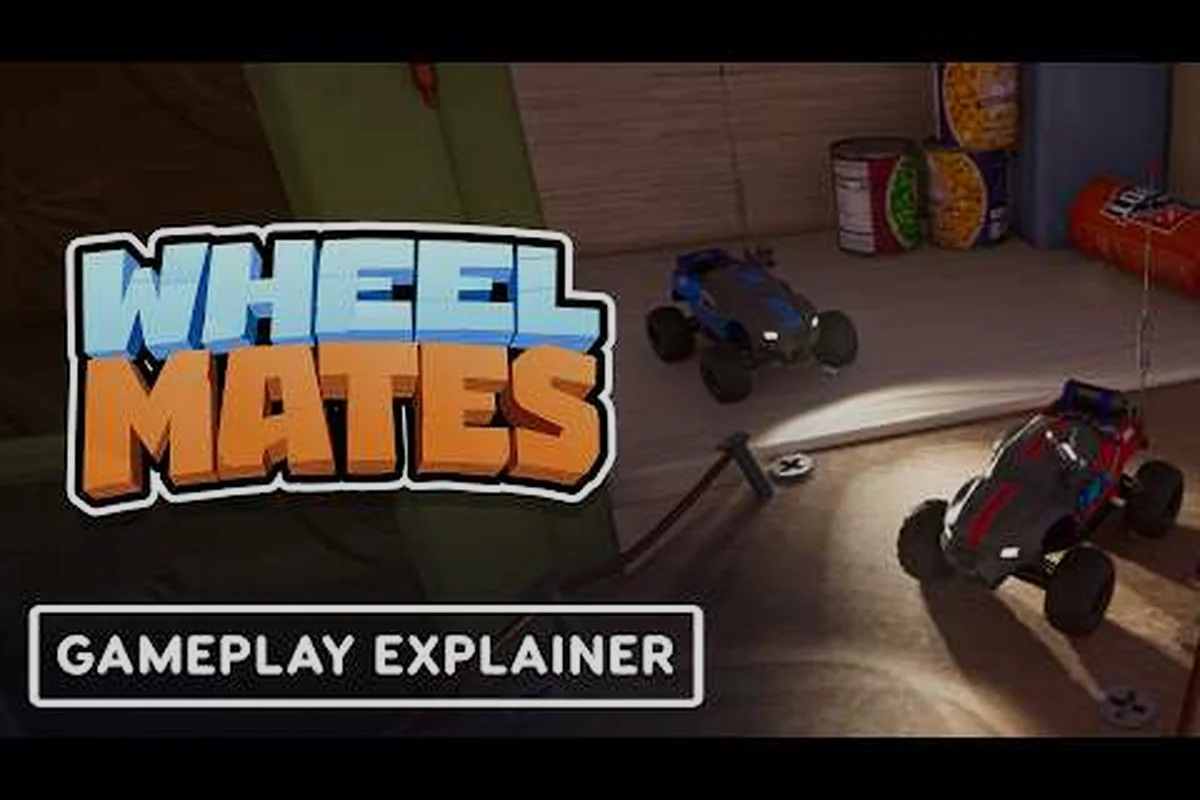
WheelMates está listado como Verificado para Steam Deck en su página oficial de la tienda, lo que significa que la aventura de conducción cooperativa para dos jugadores funciona sin problemas en el portátil de Valve sin configuración adicional. Esa insignia importa porque los juegos cooperativos a menudo fallan en dispositivos portátiles, especialmente cuando necesitas que la pantalla dividida y el multijugador en línea funcionen al mismo tiempo. Si planeas pilotar los pequeños coches de radiocontrol por el laboratorio doméstico del profesor sobre la marcha, querrás saber exactamente qué ajustes modificar antes de tu primera sesión. Esta guía cubre los detalles de wheelmates verificado para steam deck, el modo ventana, la configuración de pantalla completa, las opciones de resolución y audio, y las funciones de accesibilidad que hacen cómodo el juego portátil. También desglosaremos los objetivos de velocidad de fotogramas y los consejos para ahorrar batería para que puedas decidir entre el pulido visual y las sesiones más largas, una disyuntiva a la que todo propietario de Deck se enfrenta eventualmente.
Verificación de Steam Deck: Qué Confirma la Insignia
El programa Steam Deck de Valve clasifica los juegos en cuatro niveles según el soporte de controlador, la legibilidad de la pantalla y la compatibilidad general. Una insignia de Verificado significa que el juego funciona a una velocidad de fotogramas jugable, soporta los controles nativos del Deck y funciona sin configuración manual. La insignia de wheelmates verificado para steam deck en la página de la tienda confirma que WheelMates cumple todos esos criterios, lo cual es una señal fuerte para cualquiera que quiera jugar en cooperativo sobre la marcha. Según la página de WheelMates en Steam, el juego está etiquetado con soporte cooperativo, y los informes de la comunidad del Discord oficial confirman que tanto la demo como el lanzamiento completo arrancan sin problemas en los modelos LCD y OLED.
Cómo Funcionan los Niveles de Verificación
Valve asigna a cada juego una de cuatro etiquetas, y el nivel cambia lo que puedes esperar antes incluso de pulsar Jugar. El nivel Verificado es el más alto, seguido de Jugable, No compatible y Desconocido. WheelMates se encuentra en el nivel Verificado, lo que significa que puedes omitir la mayoría de los pasos de solución de problemas que los jugadores de portátiles suelen enfrentar.
| Nivel | Qué Significa | Estado de WheelMates |
|---|---|---|
| Verificado | Soporte completo de controlador, rendimiento fluido | Confirmado en la página de la tienda |
| Jugable | Funciona pero necesita ajustes manuales o tiene problemas menores | No aplicable |
| No compatible | No se ejecuta o tiene problemas graves de compatibilidad | No aplicable |
| Desconocido | Aún no probado por Valve | No aplicable |
Debido a que WheelMates está en el nivel Verificado, el juego detecta automáticamente la disposición del controlador del Deck y usa una resolución predeterminada que equilibra la calidad visual con la velocidad de fotogramas. Dicho esto, la insignia no garantiza un rendimiento perfecto en cada escena, por lo que algunos ajustes manuales aún pueden mejorar tu experiencia.
Qué Dice la Página de la Tienda Sobre el Soporte Portátil
Según el listado oficial de la tienda, WheelMates es una aventura de conducción cooperativa para dos jugadores de Firevolt donde pilotas dos pequeños coches de radiocontrol por el laboratorio doméstico de un profesor. La página lista Cooperativo, Pantalla dividida, Plataformas 3D, Puzle, Cooperativo local, Cooperativo en línea y Personalización de personajes como las etiquetas principales, y señala explícitamente el soporte para Steam Deck. Esa combinación es exactamente lo que quieres para el juego portátil porque significa que tanto la pantalla dividida local como el multijugador en línea se espera que funcionen en el Deck. Para una mirada más profunda a los requisitos de hardware detrás de la insignia, consulta nuestra guía de requisitos recomendados de WheelMates, que desglosa las especificaciones de CPU, GPU y RAM para configuraciones de escritorio y portátiles.
Modo Ventana y Configuración de Pantalla Completa en el Deck
El modo de visualización que elijas afecta más que solo la forma de la ventana; cambia la velocidad de fotogramas, la latencia de entrada e incluso cómo se comporta el cooperativo. WheelMates ofrece tres modos de visualización: Ventana, Pantalla completa y Sin bordes. Cada uno funciona de manera diferente en el Steam Deck, y la elección correcta depende de si juegas solo, usas pantalla dividida o capturas imágenes.
Modo Ventana para Transmisión y Captura
El modo ventana ejecuta el juego dentro de una ventana de tamaño fijo, lo cual es útil cuando quieres mantener la superposición de Steam, el chat o las herramientas de grabación visibles junto al juego. En el Deck, el modo ventana también es práctico cuando usas el modo escritorio para probar ajustes o cuando quieres forzar una resolución que no coincida con la pantalla nativa de 1280x800. La desventaja es que el modo ventana puede introducir una ligera latencia de entrada y reducir la velocidad de fotogramas porque el compositor tiene que manejar la ventana por separado. Para la mayoría de los jugadores, el modo ventana es una herramienta de solución de problemas más que una opción diaria cómoda, aunque ayuda cuando estás capturando imágenes para una guía.
Pantalla Completa vs Sin Bordes para Juego Portátil
La pantalla completa le da al juego el control directo de la pantalla, lo que generalmente ofrece la mejor velocidad de fotogramas y la menor latencia. Sin bordes ejecuta el juego en una ventana que cubre toda la pantalla, lo que hace más rápido cambiar de aplicación pero puede añadir una pequeña sobrecarga. En la pantalla de 1280x800 del Deck, la diferencia suele ser pequeña, pero los jugadores informan que la pantalla completa se siente más receptiva durante las secciones rápidas de balanceo de cuerda donde el tiempo importa.
| Modo de Visualización | Latencia de Entrada | Velocidad de Fotogramas | Mejor Para |
|---|---|---|---|
| Ventana | Mayor | Menor | Captura, solución de problemas |
| Pantalla completa | Menor | Máxima | Juego en solitario, cooperativo casual |
| Sin bordes | Media | Media | Cambio de aplicación, transmisión |
Si quieres forzar un modo de visualización específico al iniciar, la guía de opciones de lanzamiento de WheelMates explica cómo usar banderas de línea de comandos para abrir el juego directamente en pantalla completa o sin bordes, un truco útil para jugadores que cambian entre el Deck y un monitor de escritorio.
Configuración de Resolución para Visuales Portátiles
La resolución nativa del Steam Deck es 1280x800, pero WheelMates te permite elegir entre varias opciones, incluyendo 1280x720 y 1024x768. La resolución correcta depende de cuánto valores la claridad visual frente a la duración de la batería. Ejecutar a 800p te da el texto más nítido y la vista más clara de los pequeños coches de radiocontrol, pero empuja más a la GPU y agota la batería más rápido. Bajar a 720p reduce la carga y puede extender tu sesión aproximadamente 20-30 minutos, según informes de la comunidad.
La Elección entre 800p y 720p
A 800p, los elementos de la interfaz de usuario del juego son nítidos y los iconos de los dispositivos son fáciles de leer durante las secciones de puzles. A 720p, la imagen es ligeramente más suave, pero la velocidad de fotogramas se mantiene más constante durante escenas pesadas con múltiples dispositivos y la cámara. Si usas pantalla dividida con un amigo, la resolución más baja ayuda a que ambas mitades de la pantalla se mantengan fluidas, un problema común en los juegos cooperativos.
| Resolución | Relación de Aspecto | Impacto en el Rendimiento | Mejor Para |
|---|---|---|---|
| 1280x800 | 16:10 | Mayor carga de GPU | Claridad visual |
| 1280x720 | 16:9 | Menor carga de GPU | Duración de batería, pantalla dividida |
| 1024x768 | 4:3 | Menor carga de GPU | Modelos antiguos de Deck |
Si quieres aumentar la velocidad de fotogramas, el escalador FSR en el menú de gráficos puede renderizar a una resolución interna más baja y escalar a 1280x800, lo que te da una imagen más nítida que la 720p nativa sin el costo total de rendimiento. Esa es una forma inteligente de alcanzar 60 FPS en los capítulos posteriores del laboratorio, donde las secciones de imán y balanceo de cuerda se vuelven más exigentes.
Configuración de Audio y Opciones de Accesibilidad
WheelMates incluye un menú completo de configuración de audio y un conjunto de opciones de accesibilidad que hacen que el juego sea más fácil de jugar para todos. La configuración de audio controla la música, los efectos de sonido y las señales de los dispositivos por separado, mientras que las opciones de accesibilidad incluyen texto a voz, alternar subtítulos y reasignación de controlador. Estas funciones importan porque el juego depende en gran medida de las señales de audio para los puzles, especialmente en las secciones de balanceo de cuerda y agarre con imán.
Perfiles de Salida de Audio
La configuración de audio te permite cambiar entre perfiles Estéreo, Auriculares y TV. En el Steam Deck, se recomienda el perfil Auriculares porque usa el canal de audio mejorado para ayudarte a localizar la dirección de los dispositivos y la voz del profesor. Si usas un auricular Bluetooth, el perfil Automático suele elegir la salida correcta, pero puede que necesites cambiar a Estéreo manualmente si el audio suena retrasado.
| Perfil de Audio | Mejor Para | Notas |
|---|---|---|
| Estéreo | Altavoces integrados | Estándar para todas las situaciones |
| Auriculares | Con cable o Bluetooth | Mejores señales direccionales |
| TV | Modo acoplado | Neutral para pantalla externa |
Funciones de Accesibilidad para Juego Cooperativo
El menú de accesibilidad incluye Texto a voz para las entradas del diario, alternar Subtítulos y Reasignación de controlador para ambos jugadores. La opción de Texto a voz lee las entradas del diario en voz alta, lo cual es útil si juegas en una habitación brillante o si el texto es difícil de leer en la pantalla pequeña. La opción de Reasignación de controlador te permite asignar los botones a diferentes acciones, lo cual es útil cuando un jugador prefiere los botones de los hombros mientras el otro usa los botones frontales. Para un desglose completo de las funciones cooperativas, consulta la guía de cooperativo local de WheelMates, que cubre la pantalla dividida y el juego en línea en detalle.
Ajuste de Rendimiento: Velocidad de Fotogramas y Duración de Batería
Obtener el mejor rendimiento en el Steam Deck significa equilibrar la velocidad de fotogramas, la resolución y la batería. WheelMates apunta a 60 FPS en el Deck a 800p, pero la velocidad de fotogramas puede caer durante las escenas más concurridas, especialmente cuando la cámara y los dispositivos se mueven rápido. La comunidad recomienda establecer el límite de velocidad de fotogramas a 60 FPS y usar el limitador integrado del Deck para mantener estables los tiempos de fotograma.
| Configuración | Valor Recomendado | Impacto |
|---|---|---|
| Límite de Velocidad de Fotogramas | 60 FPS | Juego fluido |
| Resolución | 1280x800 | Mejor claridad visual |
| FSR | Activado | Mejor rendimiento |
| Ahorro de Batería | Desactivado | Rendimiento completo |
Si quieres extender la duración de tu batería, puedes establecer el límite de velocidad de fotogramas a 30 FPS y bajar la resolución a 720p. Eso puede añadir unos 30 minutos de tiempo de juego, según informes de la comunidad, y el juego sigue siendo completamente jugable. La compensación es que los movimientos de la cámara se sienten menos fluidos, pero las secciones de puzles no requieren entrada rápida, por lo que la velocidad de fotogramas más baja es aceptable para sesiones más largas. Para más consejos de rendimiento, la guía de requisitos recomendados de WheelMates cubre la gama completa de configuraciones tanto para el Deck como para escritorio.
Preguntas Frecuentes
¿Está WheelMates verificado para Steam Deck?
Sí, WheelMates está listado como Verificado para Steam Deck en la página oficial de la tienda. Eso significa que el juego funciona a una velocidad de fotogramas jugable, soporta el controlador nativo y funciona con pantalla dividida y cooperativo en línea sin configuración manual. La insignia también confirma que el texto y la interfaz son legibles en la pantalla de 1280x800.
¿Cuál es la mejor resolución para WheelMates en Steam Deck?
La mejor resolución es 1280x800 para claridad visual, pero 1280x720 es una buena opción si quieres preservar la duración de la batería o mantener estable la velocidad de fotogramas durante el juego en pantalla dividida. El escalador FSR también puede ayudarte a obtener una imagen más nítida a una resolución interna más baja.
¿Tiene WheelMates opciones de accesibilidad?
Sí, WheelMates incluye Texto a voz para las entradas del diario, alternar Subtítulos y Reasignación de controlador para ambos jugadores. Estas opciones son totalmente configurables desde el menú de configuración, y hacen que el juego sea más accesible para jugadores con discapacidades visuales o auditivas.
¿Puedo jugar WheelMates en cooperativo en el Steam Deck?
Sí, WheelMates soporta tanto cooperativo local con pantalla dividida como cooperativo en línea en el Steam Deck. La insignia de verificación confirma que ambas modalidades funcionan sin configuración manual, y la comunidad informa que el juego se ejecuta sin problemas en los modelos LCD y OLED. Para una experiencia óptima, se recomienda usar el perfil de audio de Auriculares y una resolución de 1280x720 si juegas en pantalla dividida para mantener estable la velocidad de fotogramas.